
Lesson 2
Writing a progression
A list of chord names tells you what the chords are and nothing about how they relate. The panel is built around a picture that tells you both, and the picture is also the control.
Opening it
Double-click Harmonic Engine in the Structure rack. The panel is a fixed size and does not scroll, so everything below is on screen at once.
The wheel
The twelve spokes are the circle of fifths, so neighbouring spokes are a fifth apart, and adjacency on the wheel is harmonic closeness. Your progression is drawn on it as a path.
That makes the shape readable at a glance. A ii-V-I is three short steps in one direction. A progression that leaps across the middle looks as restless as it sounds. You are not reading chord names, you are reading distances.
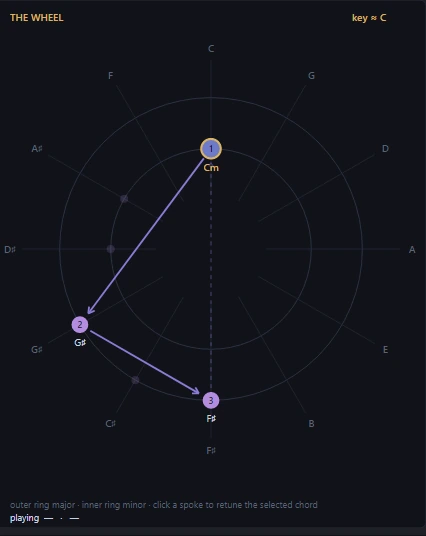
The default progression as a path. Three things are being said at once: which chords, in what order, and how far apart they are.
Four details in that picture are worth naming.
- Two rings, one angle. Majors sit on the outer ring and minors on the inner one, at the same spoke. So C and C minor are the same direction at different depths.
- Dot size is chord length. A two-bar chord draws larger than a one-bar chord, up to a cap at eight, so you can see the rhythm of the progression and not only its route.
- The return leg is dashed. A progression loops, and the step from the last chord back to the first is a real harmonic move. Hiding it would hide why some progressions feel closed and others feel like a question.
- Faint dots are the other sections. The rest of the bank, shown so you can see the territory the whole piece covers rather than just the section you are editing.
The wheel is also the control
Select a chord and click a spoke: the chord moves its root there. That is the retune gesture, and it is the reason the wheel earns the space it takes - you are choosing a root by pointing at where it sits relative to the others, rather than by picking a letter out of a list.
Clicking a dot selects that chord instead of retuning the current one. Selection has to win, or you could never touch a chord without moving it.
Quality and length are underneath, as a row of buttons - maj, m, maj7, 7, sus4, quartal and the rest - plus a bar count. The chord you have selected is named above them.
Sections, and the form
The right-hand column lists your sections. Each shows its chords as chips with their lengths, its total bars, and how many times it appears in the form - so a section you have used three times says so.
The strip along the bottom is that form. It was once a text box you typed 0, 1, 0, 2 into, which required knowing the sections were numbered from zero and punished a typo by silently rearranging your song. It is now chips.
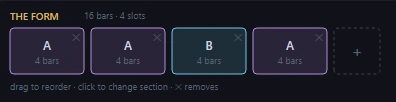
Four slots, sixteen bars. Drag a chip to reorder it, click it to step it to the next section, and the plus appends a copy of the last one - because repeating a section is the commonest edit there is.
Starting from something
The toolbar has a preset picker holding twenty-two progressions filed under six moods: Ambient, Dark, Hopeful, Melancholy, Modal and Tense. Loading one replaces the bank, and it is a faster way to find out what the panel does than building a progression by hand.
Beside it, Generate writes a section and Generate Song writes a whole bank, in the mood the selector is showing.
Both are starting points rather than answers. A generated progression is a thing to edit on the wheel, and everything in this lesson works the same on it as on one you wrote.